Milking Step-Brother by Lord Iron in Handjobs Anthology 36. Brock gets a crazy idea when he salvages an old milking machine. His initial idea is to clean it up and sell it online. But while he cleans it, an idea pops up in his mind – and idea so wicked, so perverted, so nasty, that it makes him snort with laughter.
The pumps on the old machine are wider than those on modern ones. He can squeeze three of his fingers into them. And if he can do that, he snickers knowing what else he can fit in them. “You are one sick fuck,” Brock tells himself.
When it is just him and his step-brother Shane at home, Brock decides to see if his perverted idea works. Can he get Shane’s dick inside the pump, turn on the milking machine, and make him cum?
Get Handjobs Anthology 36. ReadMilking Step-Brother by Lord Iron. How does Brock convince his step-brother that it’s OK to cram his dick into the pump of the milking machine? Does it work? Can he make Shane blow a load?
Explore the hundreds of books and magazines in the Handjobs Library. You will find books you can’t find anywhere else.
Good Guys Don’t Do That – in Dad’s Bedtime Tales Newsletter 457
Good Guys Don’t Do That in Dad’s Bedtime Tales Newsletter 457. Julio nearly punches his friend Sanders in the face when Sanders says, “Julio, it must be nice having a homo as a baby brother. Bet he sucks you off whenever you need it! Think he’d suck my dick too?”
Growing up, Julio never talked to his younger brother, Carlos, about what he was. Julio figured it out when Carlos’s eyeballs popped out of his head the time Julio showed him how to masturbate.
It was Dad’s idea that Julio teach his younger brother. “Some times boys act up when they aren’t draining their nuts. Sometimes an older brother has to step in and show his little brother how to do that. Remember how much better you felt when I taught you how to take care of your nuts?”
But Julio reacted badly when after showing Carlos how to jack off, Carlos reached for his older brother’s cock.
However, when a brother of a girlfriend sucks Julio off, Julio wonders what it would feel like if his younger brother sucked him off. Carlos has sucked so many dicks, he’s a pro.
You can now log into HJMag using a Passkey instead of a password. This lets you log in with your fingerprint, Face ID, or a device PIN — quick and secure.
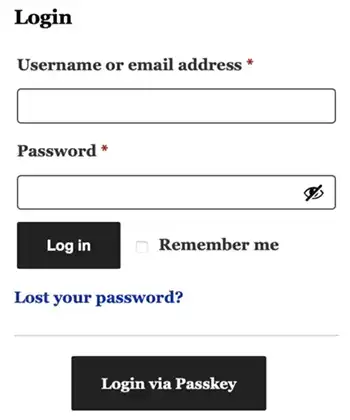
On the login form, you’ll see a “Login via Passkey” option below the username/email and password fields.
Before you can login with a Passkey, you must create one. And in order to create a Passkey, you must be logged in because a Passkey is associated with your account.
If you are not logged in yet, first log in with your username or email address.
Creating a Passkey
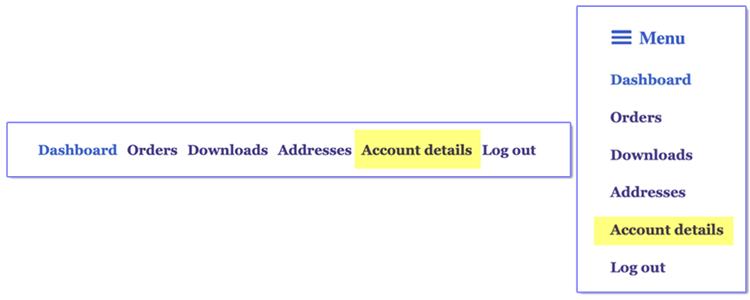
Once you are logged in, head on over to your Account details to create a Passkey.
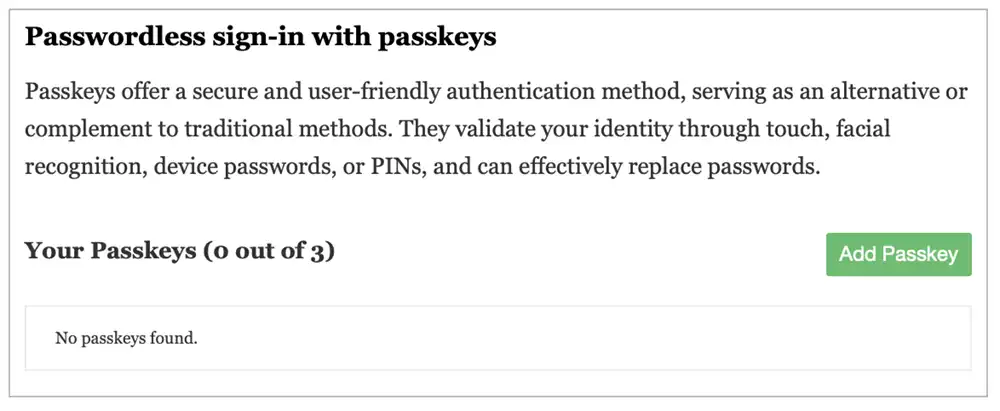
Scroll to the bottom of the Account Details page — you’ll see the form to add a Passkey.
Click the “Add Passkey” button to create one. Your device will guide you through the process. This may involve touching a fingerprint reader, using Face ID, or entering a device PIN or password.
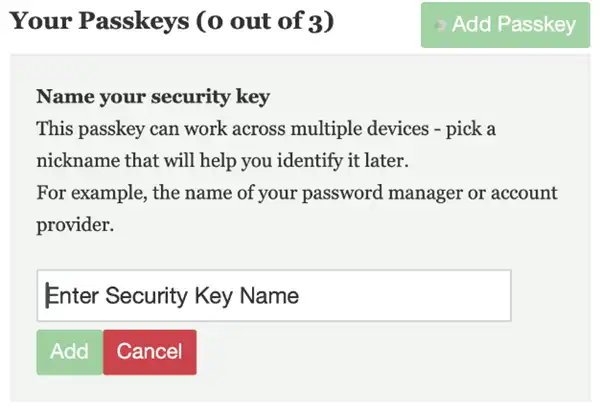
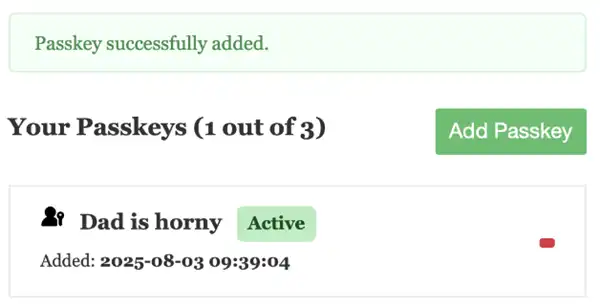
Once the Passkey is created, give it a name and add it. You’ll then see it listed among your Passkeys. You can store up to 3 Passkeys if you’d like (e.g., for your phone, tablet, and computer).
Tip: The name is just for your reference. When logging in, your device will show the Passkey(s) available for HJMag based on your email address.
Using a Passkey is optional — creating one doesn’t disable your password. You can still log in anytime with your username or email and password.
How Safe are Passkeys and how do they work?
Passkeys are very safe. Instead of Websites holding the keys for you to login, with a Passkey, your keys stay safely on your personal device — your phone, tablet, or computer.
When you create a Passkey for HJMag, your device generates two keys: a private key and a public key. These keys are unique to you and HJMag — they won’t work on any other site. Your device securely stores the private key, and only shares the public key with HJMag.
On most devices, private keys are created and stored in locations so secure that they can’t be accessed or read — not even by the operating system. Programs like web browsers can only request that a piece of data be signed using a private key associated with you and a specific website. But the key itself is never exposed.
The math behind private keys is so strong that even a supercomputer making a trillion attempts per second would need billions of times the age of the universe to guess the right one.
When you log into HJMag with your Passkey, your device says to HJMag: “Let me in — I have a key.”
HJMag replies with a unique challenge — a long, random string of characters — and says: “Prove it.”
Your device signs the challenge using your private key and sends the signature back.
HJMag uses your public key to verify the signature. Although HJMag never sees your private key, it can confirm — using advanced math — that only your private key could have created that signature for the challenge it sent. If it checks out, you’re logged in.
References
Want to explore further? These resources offer great explanations:
What are Passkeys? – A clear, interactive guide with demos and FAQs, great for beginners and curious developers.
Google Passkey Information – A friendly overview of Passkeys and how they work with your Google Account and Android devices.
FIDO Alliance Passkeys – The organization behind the standard, with technical and general info.
What Devices Support Passkeys?
Windows 10 (version 1903+, May 2019) and Windows 11: Requires a compatible browser (like Chrome or Edge). For biometrics (Windows Hello): requires device with Windows Hello configured. Supported: Passwordless login using fingerprint, face, PIN, or security key.
macOS Ventura (13) and later: Safari, Chrome, Firefox, and Edge (latest versions). Supported: Face ID, Touch ID, or password fallback via iCloud Keychain.
iOS 16 and iPadOS 16 or later: Safari or Chrome. Supported: Face ID, Touch ID, or passcode.
Android 9 (Pie) and later: Google Play Services must be up to date. Supported: Fingerprint, face unlock, or screen lock; syncs via Google Password Manager.